Descript vs Premiere Pro for Video Podcast Editing
Descript or Premiere Pro for your multicam video podcast? Here's when each makes sense — and how to automate the editing in Premiere without leaving it.
April 9, 2026. 7 min read
Descript is a great tool. Text-based editing, built-in transcription, filler word removal — if you’re a solo creator or an audio-first podcaster, it’s hard to beat.
But if you edit multicam video podcasts in Premiere Pro, Descript creates an awkward choice: leave Premiere to get automated editing, or stay and do everything by hand.
This article started as a guide for Premiere editors who wanted automation without leaving their NLE. That’s still the core of it. But since we first published, WizCut also launched a standalone web app — so we’ve added a section on that option too, for people who don’t use Premiere at all but want focused multicam podcast editing.
What Descript does well
Let’s be fair about this.
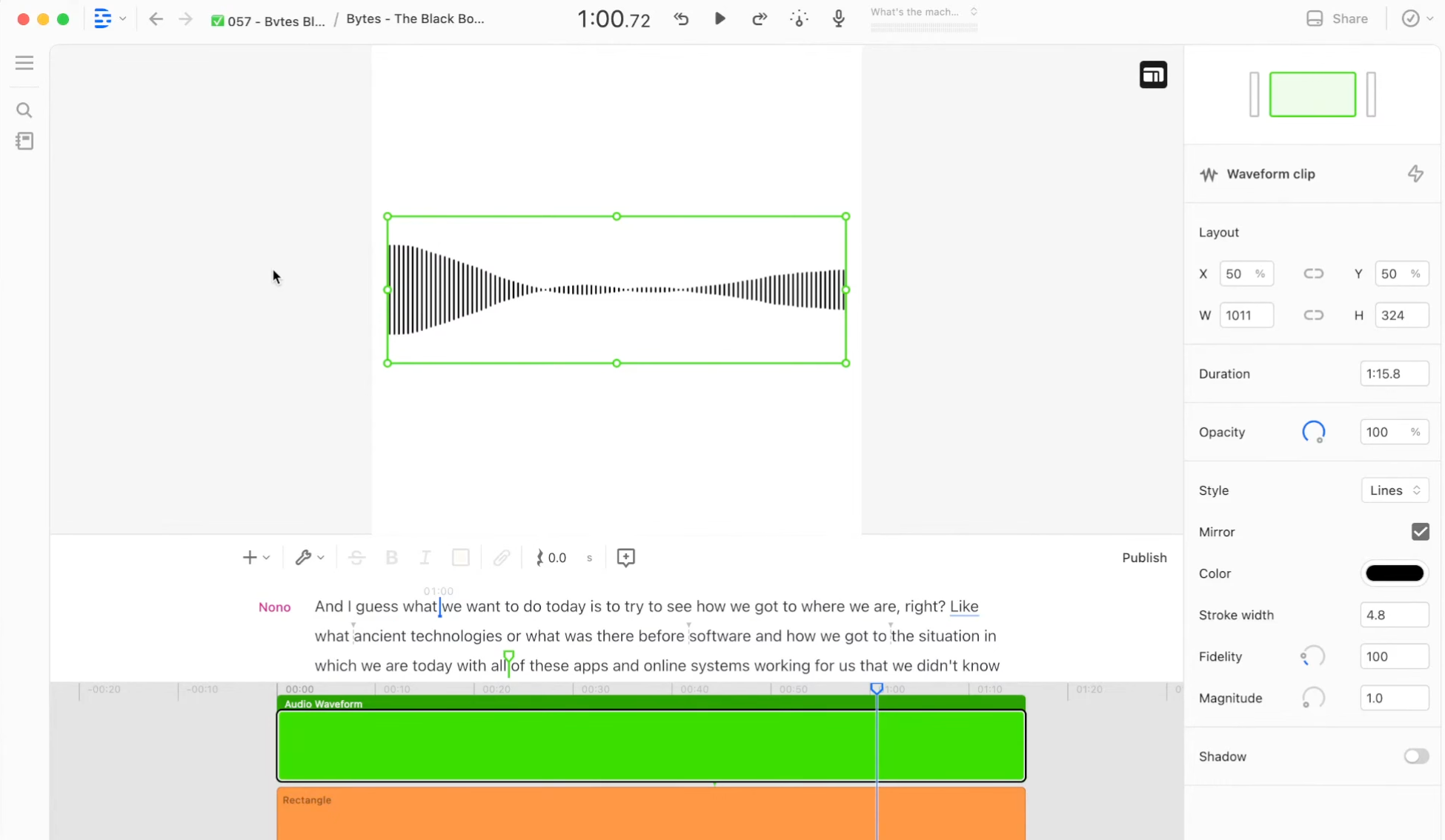
Descript’s core idea is clever: edit video by editing text. Your footage gets transcribed, you delete words from the transcript, and the video cuts to match. For solo content, interviews, and audio-first podcasts, it’s genuinely fast.
It also handles filler word removal automatically, has decent screen recording, and the transcription quality is solid. If you’re building your entire editing workflow from scratch and don’t need a full video editor like Premiere, Descript makes a lot of sense.
Where it gets awkward for multicam video podcasts
The trouble starts when you have multiple cameras and you’re already working in Premiere Pro.
You have to leave Premiere. Your footage goes into Descript, gets edited there, and then you export it back. If you’re already comfortable in Premiere — with your color grading, effects, audio mixing, and keyboard shortcuts — this is a big context switch.
Multicam support is limited. Descript has multicam features, but they don’t match what Premiere Pro offers natively. In Premiere, you get multicam source sequences where you can click-switch between angles in real time, use keyboard shortcuts to cut on the fly, and flatten or re-edit the sequence at any point. Descript’s approach is simpler but less flexible.
The round-trip hurts. Exporting from Descript back to Premiere (via XML or AAF) often introduces sync issues, missing effects, or quality loss. Every round-trip is a chance for something to break. And once you’ve edited in Descript, you can’t just “open” that edit as a native Premiere multicam sequence.
Advanced post-production happens in Premiere anyway. Color grading, audio sweetening, complex titles, transitions — if your podcast has any visual polish, you’ll end up in Premiere regardless. So why start somewhere else?
The alternative: automate the switching inside Premiere
The tedious part of multicam podcast editing isn’t the color grading or the audio mix. It’s watching your footage and clicking the right camera angle every time someone speaks. That’s the part worth automating.
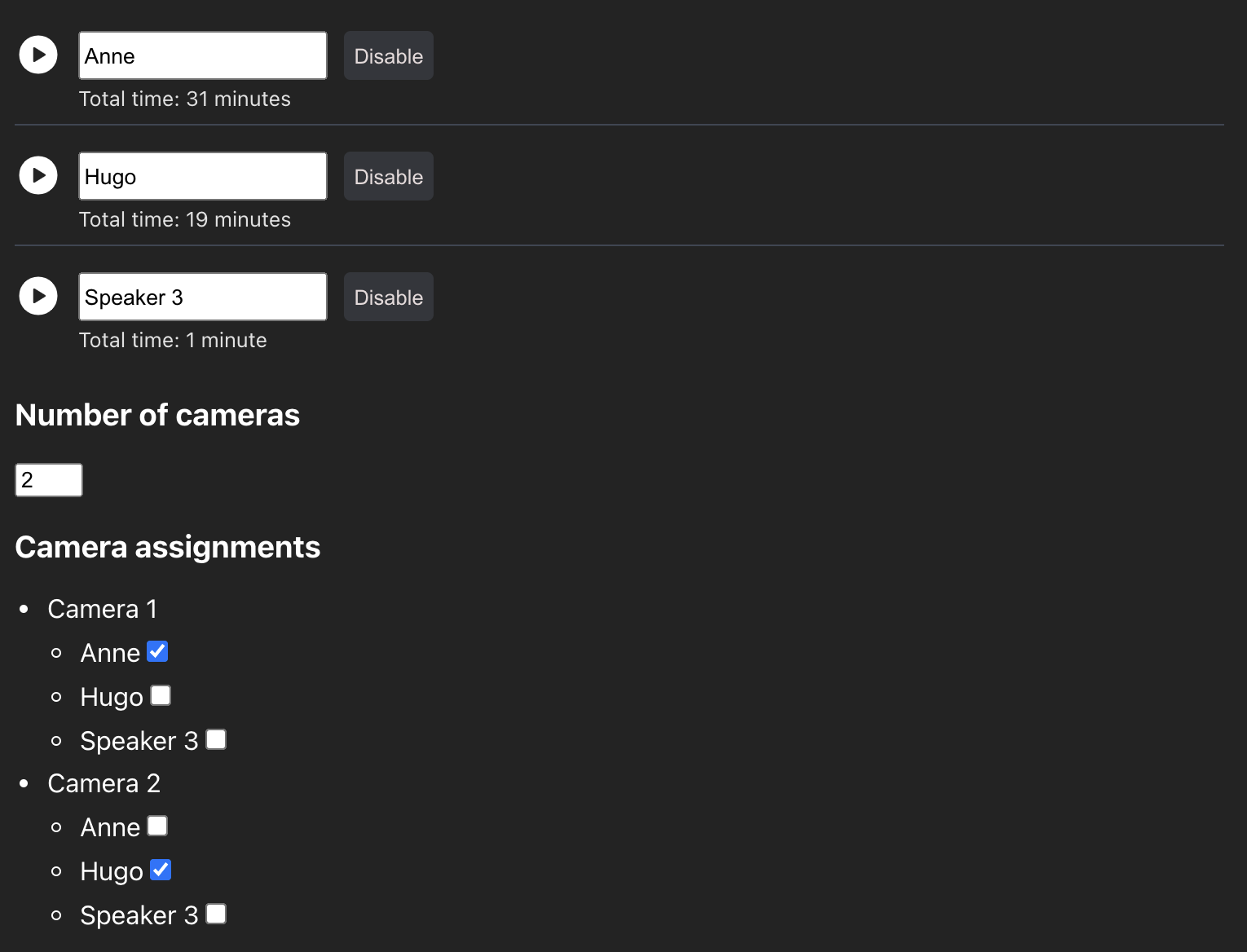
With WizCut, you stay in Premiere Pro the whole time. You set up your multicam sequence like normal, map speakers to camera angles, and let the AI handle the switching. The result is a native Premiere multicam sequence — the same thing you’d build by hand, just faster.
A few things that matter here:
AI speaker detection, not loudness-based switching. Most automation tools (including Descript) check which audio track is loudest and switch to that camera. That works fine with perfectly isolated microphones, but falls apart with audio bleed, crosstalk, or a single mixed audio track. WizCut uses actual speech recognition to identify individual speakers, so it handles messy real-world audio better.
Native multicam output. The result is a real Premiere Pro multicam sequence. You can switch angles in the program monitor, flatten it, re-edit it — the standard multicam workflow you already know. For a deeper look at how this works, see our guide to multicam editing in Premiere Pro.
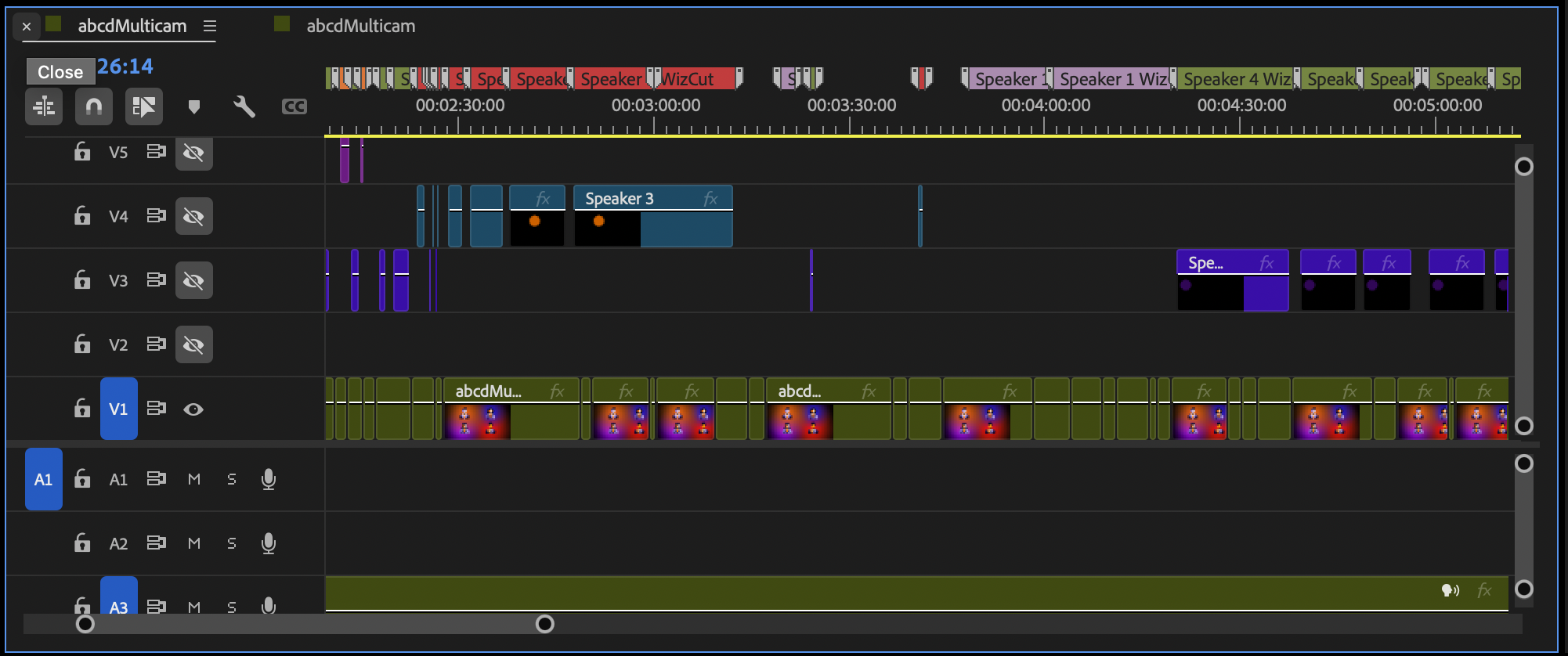
A multicam edit in Premiere Pro — all angles in sync, easily switchable. This is what WizCut produces automatically.
The third option: WizCut’s web app
When we first wrote this article, the choice was binary — leave Premiere for Descript, or stay in Premiere with WizCut. Now there’s a third angle.
WizCut has a standalone web version. You upload your multicam podcast footage, the same AI speaker detection runs on it, and you get a cut you can review and adjust in a browser-based editor before rendering the final video. No Premiere Pro, no NLE at all.
So what’s different from Descript?
Focus. Descript is a general-purpose editor — it handles solo videos, screen recordings, audio podcasts, and everything in between. WizCut’s web app does one thing: multicam podcast editing. You upload footage, it syncs your cameras, detects speakers, generates cuts, and renders. That’s it. If multicam podcasts are your thing, the focused tool tends to do it better.
Speaker detection. Same AI-based detection as the Premiere extension. It handles crosstalk, bleed, single-track audio — the stuff that trips up loudness-based tools including Descript.
No learning curve. There’s no timeline editor to learn, no new paradigm to internalize. Upload, review the cuts, adjust if needed, render. If you want more control, you can tweak individual cuts in the browser-based editor before rendering.
This won’t replace Descript if you need text-based editing, screen recording, or filler word removal — we still don’t touch filler words. But WizCut’s web app now tightens or removes long pauses automatically, which closes some of that gap for dead air specifically. If you’re a podcaster who just wants the camera switching done and a finished video out the other end — and you don’t want to install or learn Premiere Pro — it’s worth a look.
When Descript is still the right choice
This article isn’t about Descript being bad. It’s about workflow fit.
Stick with Descript if:
- You don’t use Premiere Pro and don’t want to learn a full video editor
- Your podcast is audio-only (no video cameras)
- Text-based editing is your primary workflow — you want to edit by reading, not by watching
- You’re a solo creator who needs recording + editing + publishing in one app
- You need a general-purpose editor, not just multicam switching
Consider staying in Premiere + WizCut if:
- You already edit in Premiere Pro
- You record with multiple cameras
- You want native multicam sequences you can fine-tune
- Your audio has bleed between microphones or you work with a single mixed track
- You need advanced color grading, effects, or audio post-production
Consider WizCut’s web app if:
- You don’t use Premiere Pro but you specifically need multicam podcast editing
- You want the simplest possible workflow — upload, review, render
- You care about accurate speaker detection more than general-purpose editing features
- You want a finished multicam video without learning an NLE
Try it yourself
WizCut has a free trial — you can test it on a real podcast episode and see how the AI handles your specific audio setup. If you use Premiere, set up your multicam sequence, map your speakers, and let it run. If you don’t, try the web app — upload your footage and see the result in a few minutes. If you’re also weighing other automation tools, our AutoPod alternatives comparison covers the full landscape.