Editing Multicam with WizCut
Set up your Premiere multicam sequence and use WizCut to automatically detect speakers and generate camera cuts.
WizCut analyzes your podcast or interview audio, detects when speakers change, and automatically generates camera cuts for your multicam sequence. This guide walks you through the complete setup — from preparing your footage to reviewing WizCut’s cuts in Premiere.
Before you start
You’ll need:
- Adobe Premiere (any recent version)
- Multiple camera angles recorded at the same time
- Audio from the session
- A WizCut account with a subscription or lifetime license. New accounts start with a 7-day free trial.
- The WizCut extension, installed from the download page
Step 1: Import your footage
Import all your camera angles and your speaker audio into your Premiere project.
Step 2: Create a multicam source sequence
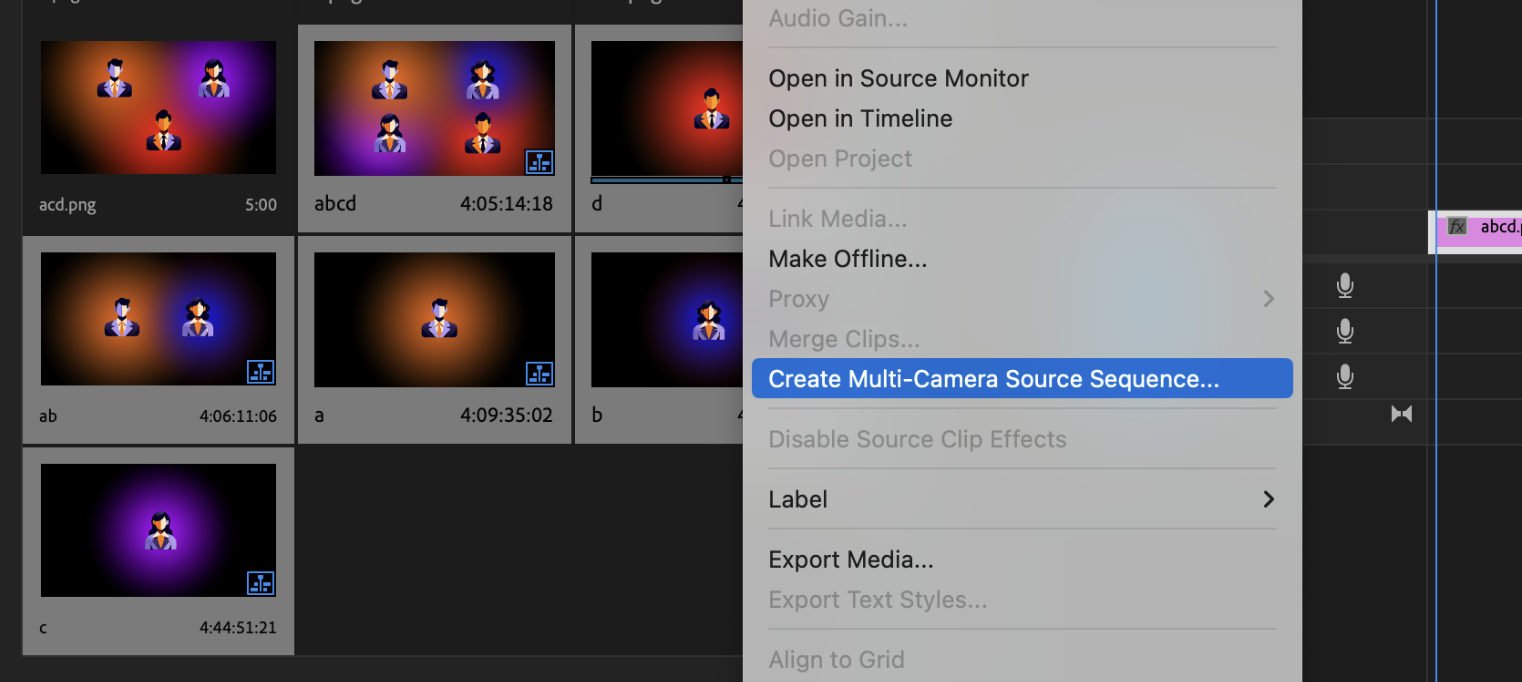
In the Project panel, select all your camera clips together with your speaker audio files. Your audio belongs in this sequence, not added to the target sequence later — that’s the setup WizCut is built for. Right-click and select Create Multi-Camera Source Sequence. In the dialog, choose how to synchronize the angles — Audio works well for most podcasts, or Timecode if your cameras share it. Premiere creates a new multicam source sequence with all your clips organized on separate tracks.
Step 3: Create a target sequence
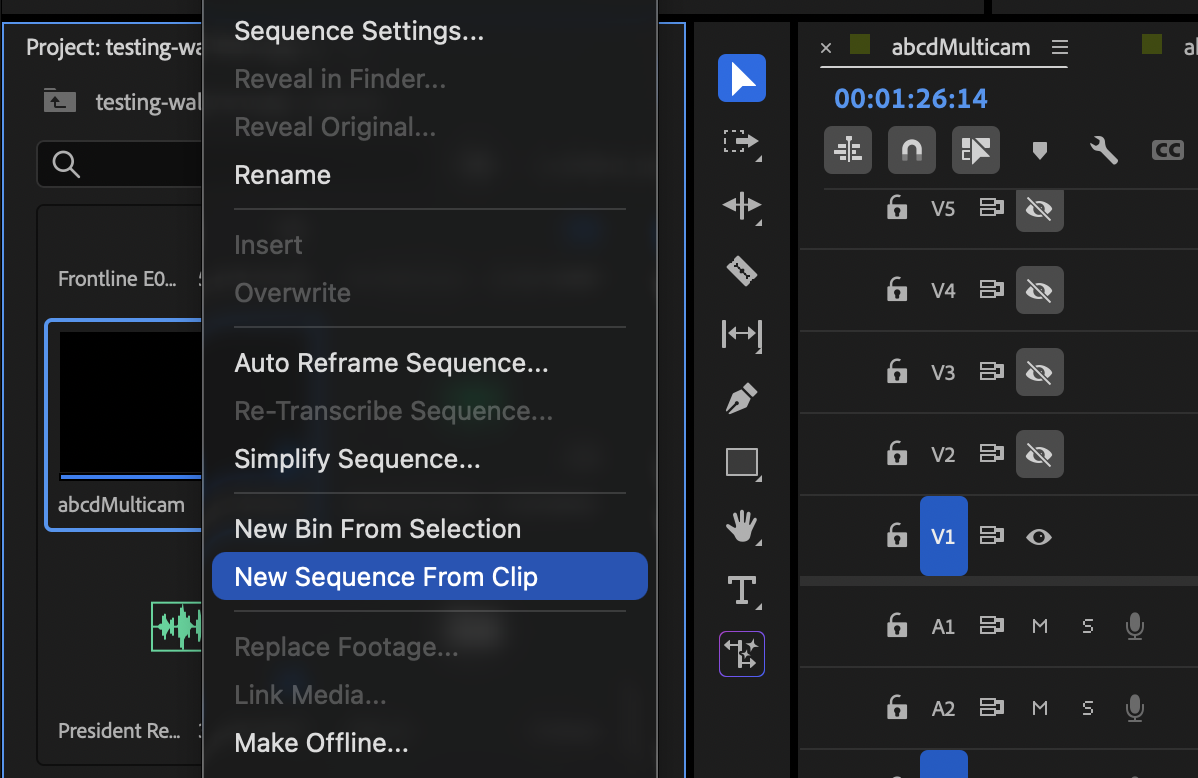
Find the multicam source sequence in your Project panel. Right-click it and select New Sequence From Clip. This creates a target sequence — your editing sequence where you’ll work and where WizCut will apply the cuts.
For more details on target sequences, see Adobe’s guide to creating multicam target sequences.
Step 4: Check the audio in the target sequence
Open the target sequence. WizCut analyzes the audio on the timeline you’re working in, so your speakers’ audio needs to be audible here. Because you included it in the multicam source sequence in Step 2, it’s already there as part of the multicam clip.
Your speakers’ audio can be a single file or split across several — one mic per speaker, camera audio, a pre-mixed track, whatever you’ve got. It’s all supported. Keep music and ambience off this timeline so they don’t interfere with detection — you can add those later in a separate sequence.
Don’t add audio as separate clips to the target sequence. If your audio is missing here, go back to Step 2 and create the multicam source sequence again with the audio files included.
Step 5: Enable multicam mode
With your target sequence open:
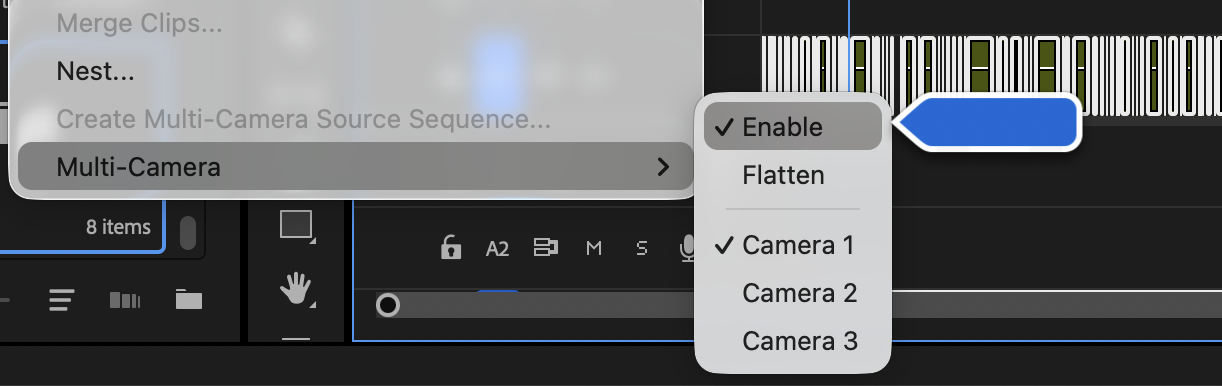
- Go to Clip > Multi-Camera > Enable.
- Test that it’s working: With the timeline focused, use number keys 1–9 to switch between camera angles. The angles should switch in your Program Monitor.
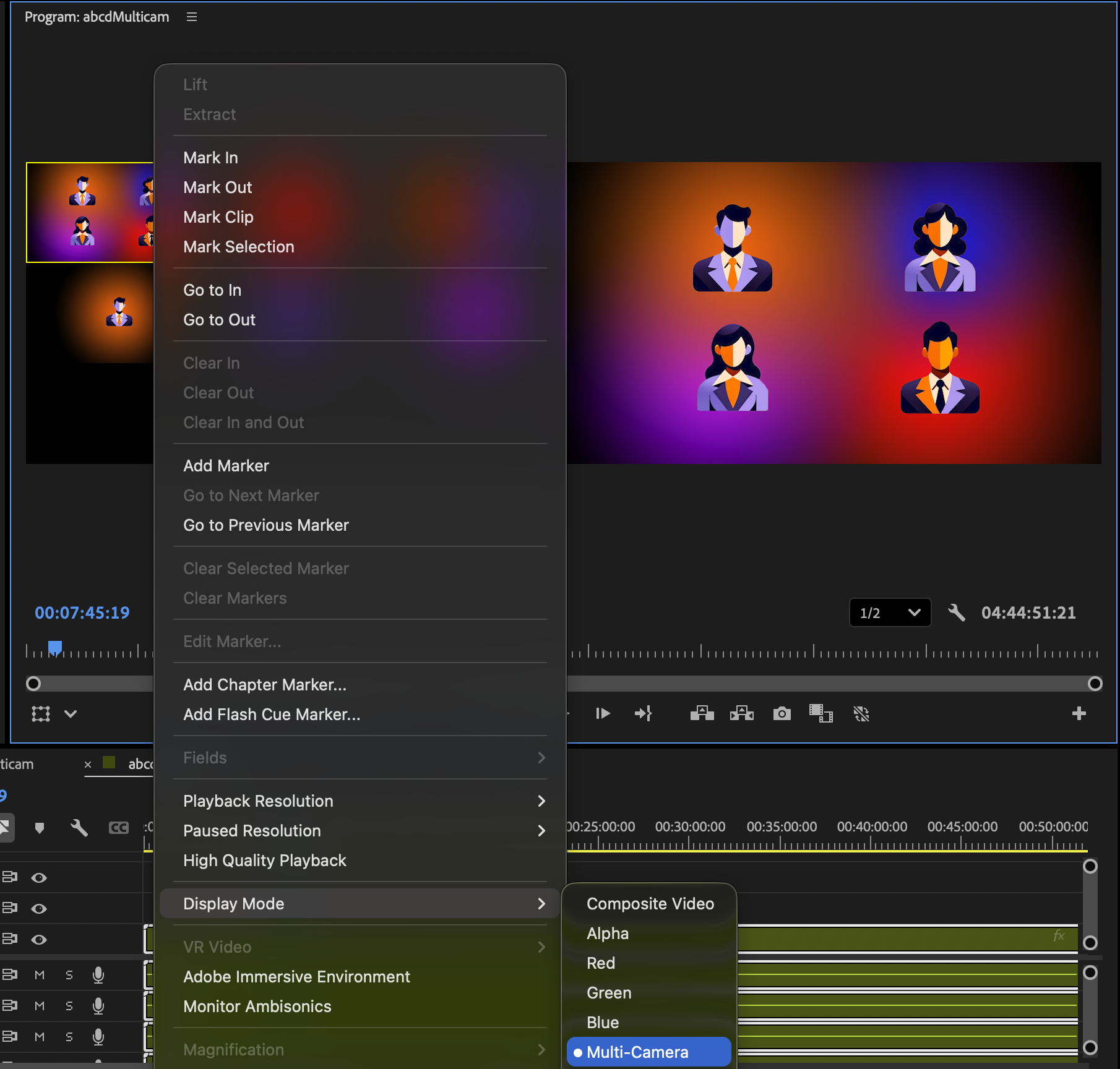
You can also right-click in the Program Monitor and select a display mode to view all angles at once as a multicam preview.
Should you need more help with Premiere’s multicam features, see Adobe’s official multicam editing guide.
Step 6: Open WizCut
Launch the WizCut extension via Window > Extensions > WizCut. Sign in, or create an account if you haven’t already.
The first screen is a short checklist. Before you continue, make sure that:
- Only your speakers’ audio is in the timeline.
- Your cameras are in the timeline as one multicam clip, and nothing else is on the video tracks.
- The Program Monitor panel is open.
If you’ve run WizCut on this sequence before, you can clear its old markers with Delete WizCut markers.
Step 7: Analyze your footage
Follow WizCut’s steps to analyze your sequence. WizCut exports the timeline audio from Premiere, uploads it, and detects all the speakers in your session.
The export can take a few minutes on a long timeline, and Premiere is unresponsive while it runs. Leave it running, and don’t change your project until the analysis is done.
Step 8: Name your speakers
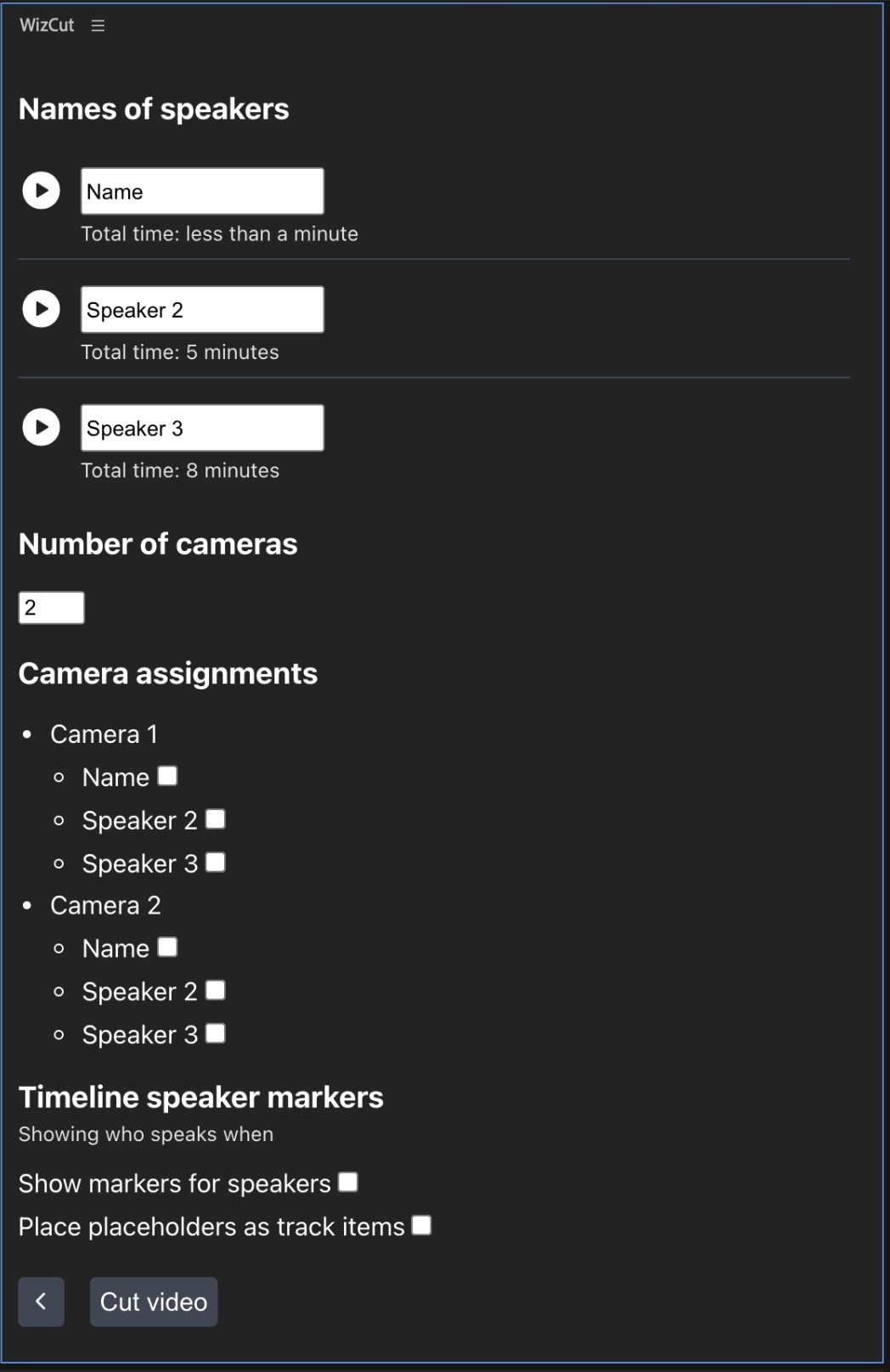
After analysis, WizCut shows you a list of detected speakers, named “Speaker 1”, “Speaker 2”, and so on. For each one:
- Click the Play button next to their name. Premiere plays a few moments of that speaker talking.
- Listen and confirm who it is. You can rename them (e.g., “Host”, “Guest”) or keep the default name.
Below each speaker you’ll see their total speaking time.
Handling detection issues:
- A speaker appears multiple times: This might be a hum or breathing sound detected as a separate speaker. Just enter the same name multiple times — WizCut will merge them.
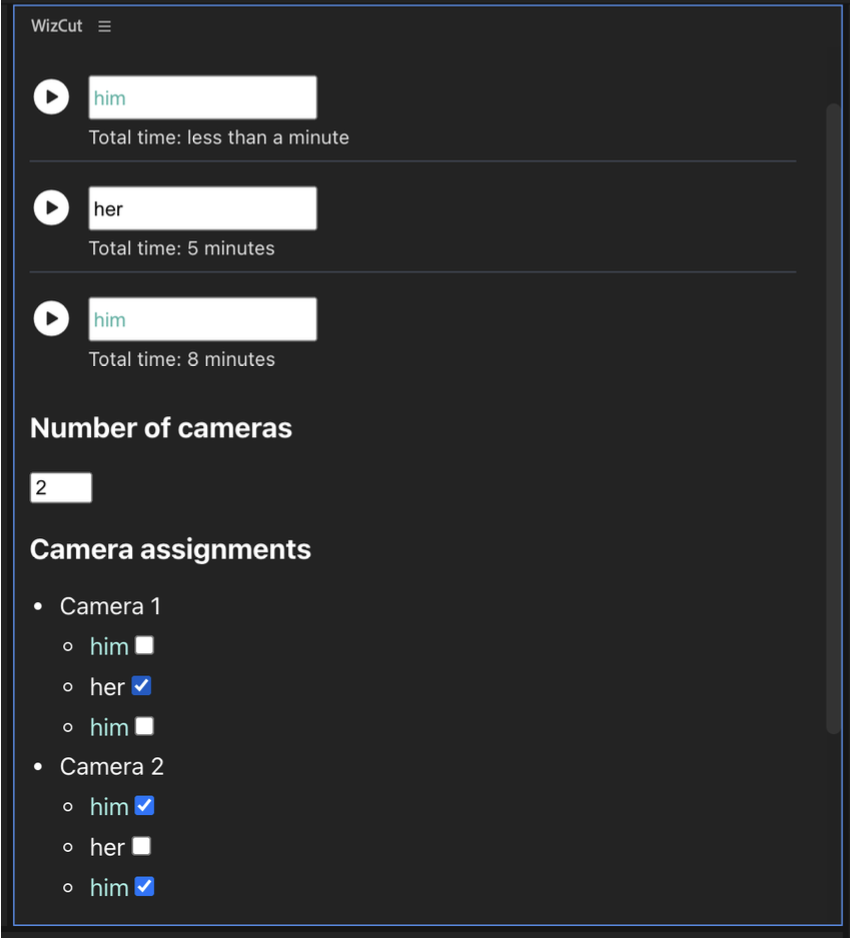
- Noise or off-camera voices: If a detected speaker only talks for a few seconds, if you can’t identify who it is, or if they should be ignored (for example, someone off-screen), click Disable next to them. At least one speaker has to stay enabled.
- Something seems wrong? Contact support@wizcut.com for help.
Step 9: Configure camera settings
Tell WizCut how many camera angles you have in your multicam sequence. Make sure you have the sequence open so you know how many tracks you used (V1, V2, V3, etc.).
Then select which speakers are visible on which cameras. Use the multicam sequence to reference which angle is on which track.
Step 10: Choose what happens to pauses (optional)
Below the camera assignments you’ll find a Pauses section. Long silences — someone thinking, a sip of water, a gap before the next question — can come out before WizCut switches cameras. Pick one of three options:
- Keep all pauses (default): leave the recording exactly as it is.
- Tighten pauses (recommended): shorten long pauses to a natural beat of about 0.7 seconds. The episode gets shorter, but it still sounds like people thinking rather than a machine-cut edit.
- Remove pauses: cut long pauses out almost entirely, leaving just enough room so words don’t get clipped. Good for a tighter, more YouTube-style feel.
WizCut measures the recording while you name speakers and shows an estimate next to each option, like “≈ 40s shorter · 47 pauses · 1.5%”. Only pauses longer than 1.5 seconds are touched, and a pause counts only when there’s a gap between speakers and the audio is actually quiet — so laughter and reactions stay in.
What this changes in your project. Pause removal edits the multicam source sequence (the one holding your camera angles), not the sequence you have open. WizCut duplicates it first as <source name> (before WizCut), then shortens the original and trims the multicam clip in your target sequence to match. If you ever want the pauses back, swap the backup back in — Cmd+Z won’t undo hundreds of edits in one step.
This is one reason your speaker audio belongs in the multicam source sequence (Step 2): that way it’s shortened together with your camera angles and stays in sync.
Why pauses come out first. If cameras were switched first and pauses removed afterwards, a two-second reaction shot could lose most of itself to a deleted pause and end up as a flash of a few frames. Removing pauses first means every camera decision is made on the conversation your viewers will actually hear.
Only on a fresh rough cut. Pause removal needs a target sequence that hasn’t been cut yet. If your sequence already has cuts, titles, or b-roll on it, WizCut will skip pause removal and tell you why — tightening the source underneath existing work would slide everything out of alignment.
Step 11: Pick an editing pace
The Editing pace section sets how busy the edit feels:
- Relaxed: calmer. Ignores quick reactions and holds each shot longer.
- Balanced (default): cuts on every speaker change, including short reactions.
- Dynamic: more camera movement and more wide shots.
Each option shows an estimate of the result, like “≈ 120 cuts · ~8s per shot · 1 in 10 under 2s”, so you can compare them before cutting.
Step 12: Enable timeline markers (optional)
WizCut can add visual markers and speaker tracking to your Premiere timeline. If you enable this, you’ll see:
- Color-coded markers showing where speakers change
- Placeholder tracks showing which speaker is active at each moment
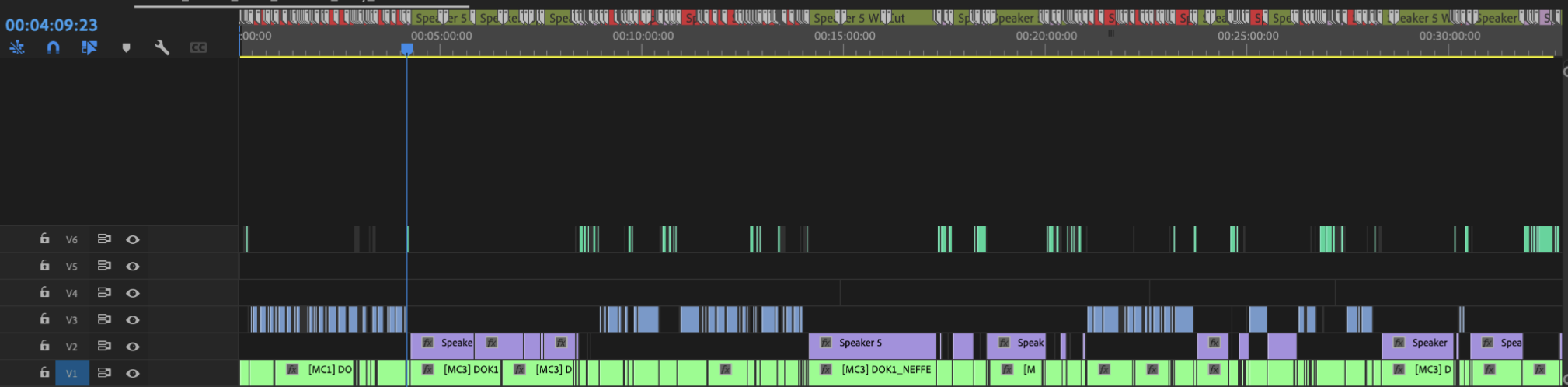
You can hide these tracks later if they clutter your timeline. This helps you visualize the speaker changes before cuts are applied.
Step 13: Cut the video
Click Cut video (or Set placeholders and cut video if you turned on placeholders). WizCut counts down for a few seconds, then makes the cuts in your timeline — and removes pauses first, if you chose to.
Before the countdown ends, click on your target sequence’s timeline to focus it. The timeline has a blue border when it’s active. Keep it focused while WizCut works, and don’t touch anything until it’s done — otherwise the camera switches can’t be applied.
Step 14: Review the cuts
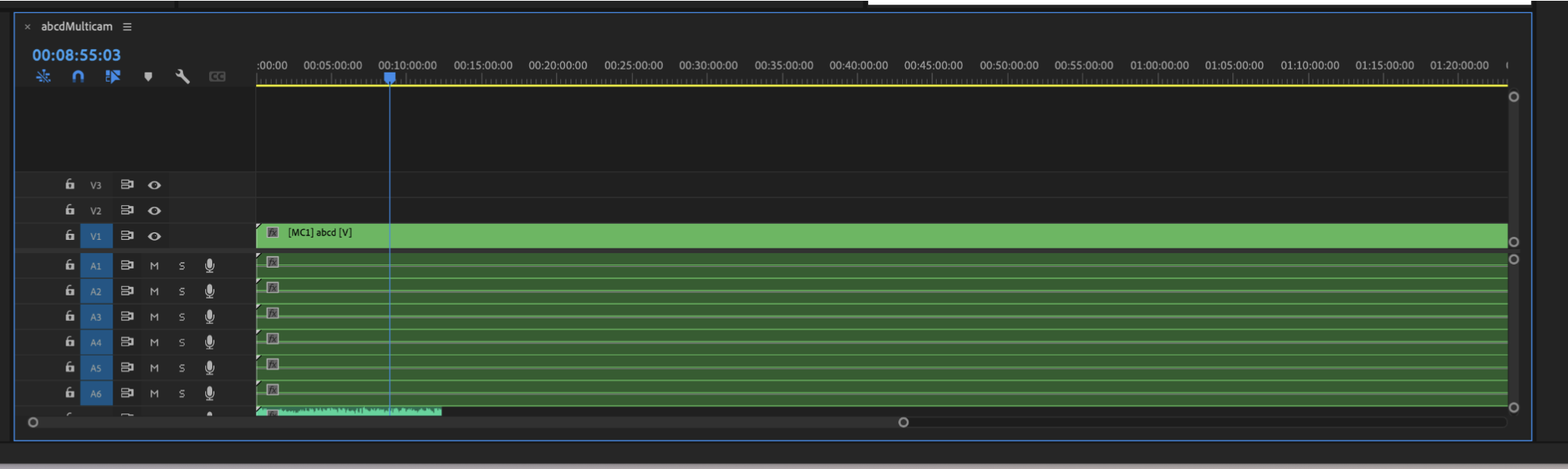
Once WizCut is done, check your timeline. You should see cuts at speaker changes. Play through and review:
- Do the cuts happen at natural moments?
- Are the angles switched correctly?
- Are there any mistakes you want to fix?
You can manually adjust cuts if needed — just use Premiere’s standard editing tools (like keys 1–9 to change camera angle) to move them or delete unwanted cuts.
If you turned on pause removal, the untouched copy of your source sequence is in your project as <source name> (before WizCut). Keep it until you’re happy with the edit.
Want to try a different pace? WizCut needs the same fresh starting point as on its first run, so a new run won’t fix up an existing one. Get back to the state before WizCut ran:
- If you removed pauses, put the backup back: delete the shortened source sequence and rename
<source name> (before WizCut)to the original name. - Delete the cut target sequence and create a new one from the source sequence (Steps 3–5).
- In WizCut, click Start over and go through the steps again.
Tips for the best results
- Clean audio: Remove loud background noise, fan hum, or other distractions before processing. WizCut listens to detect speakers, and noise makes that harder.
- Balanced levels: If one speaker is much quieter than another, WizCut might have a harder time detecting them. Try to balance levels before analyzing.
- Tight sync: Make sure your camera angles are synchronized. If they drift out of sync during the session, WizCut’s cuts will look off.
- Similar framing: Angles that are wildly different (one zoomed in, one very wide) can make jump cuts look jarring. Aim for consistent framing across cameras.
- Music and ambience: If you want to add music or ambience, do it in a separate sequence that imports your WizCut-edited multicam sequence. Don’t add music to the same timeline as your audio analysis.
Questions or feedback?
If something doesn’t work as expected, email support@wizcut.com.
For a general guide on setting up multicam sequences in Premiere, see our Premiere multicam guide.